
How it works
Start with AI. Take control as you need it.
Building with AppMaker begins with a conversation and can go as deep as you want. You choose how much of the work to hand to the AI and how much to do yourself, at every step.
Step 1
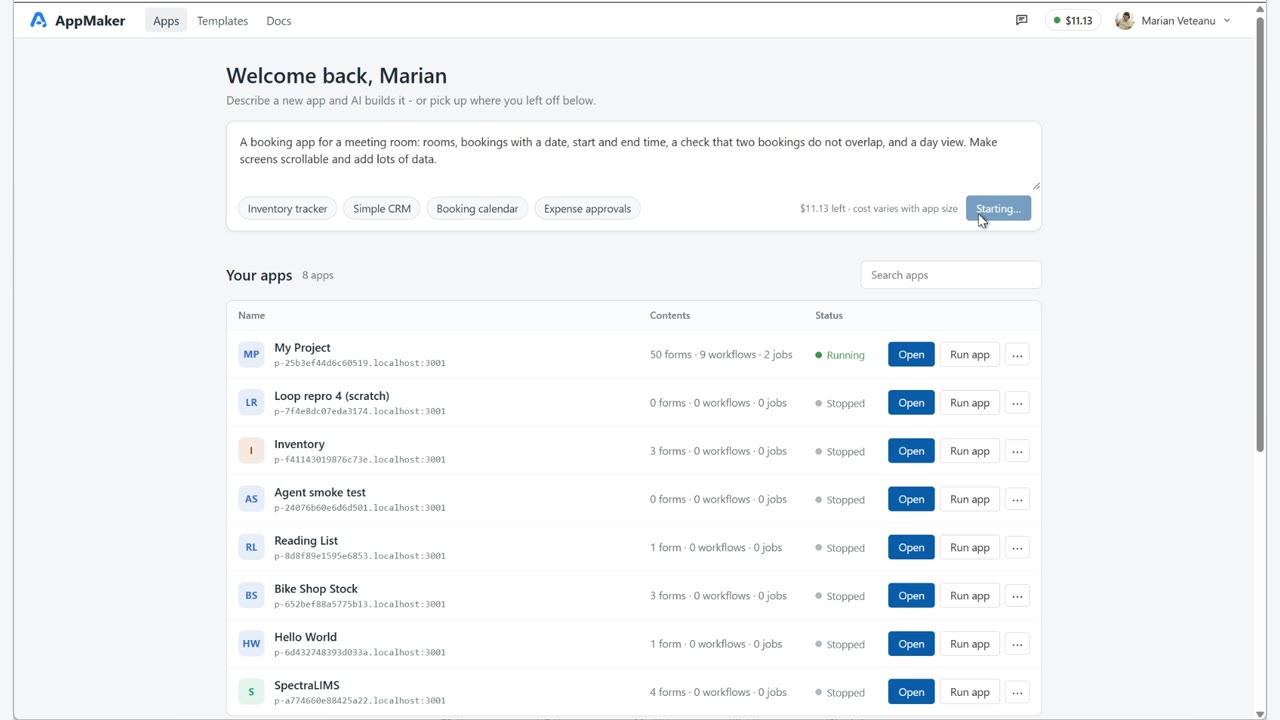
Describe the app you need
Start from the home screen. Write what the app should do in a few sentences, or pick an example such as Inventory tracker, Simple CRM, Booking calendar or Expense approvals, then press Generate app.
Be as specific as you like about the data, the screens and who may do what. You can always add more later.
Step 2
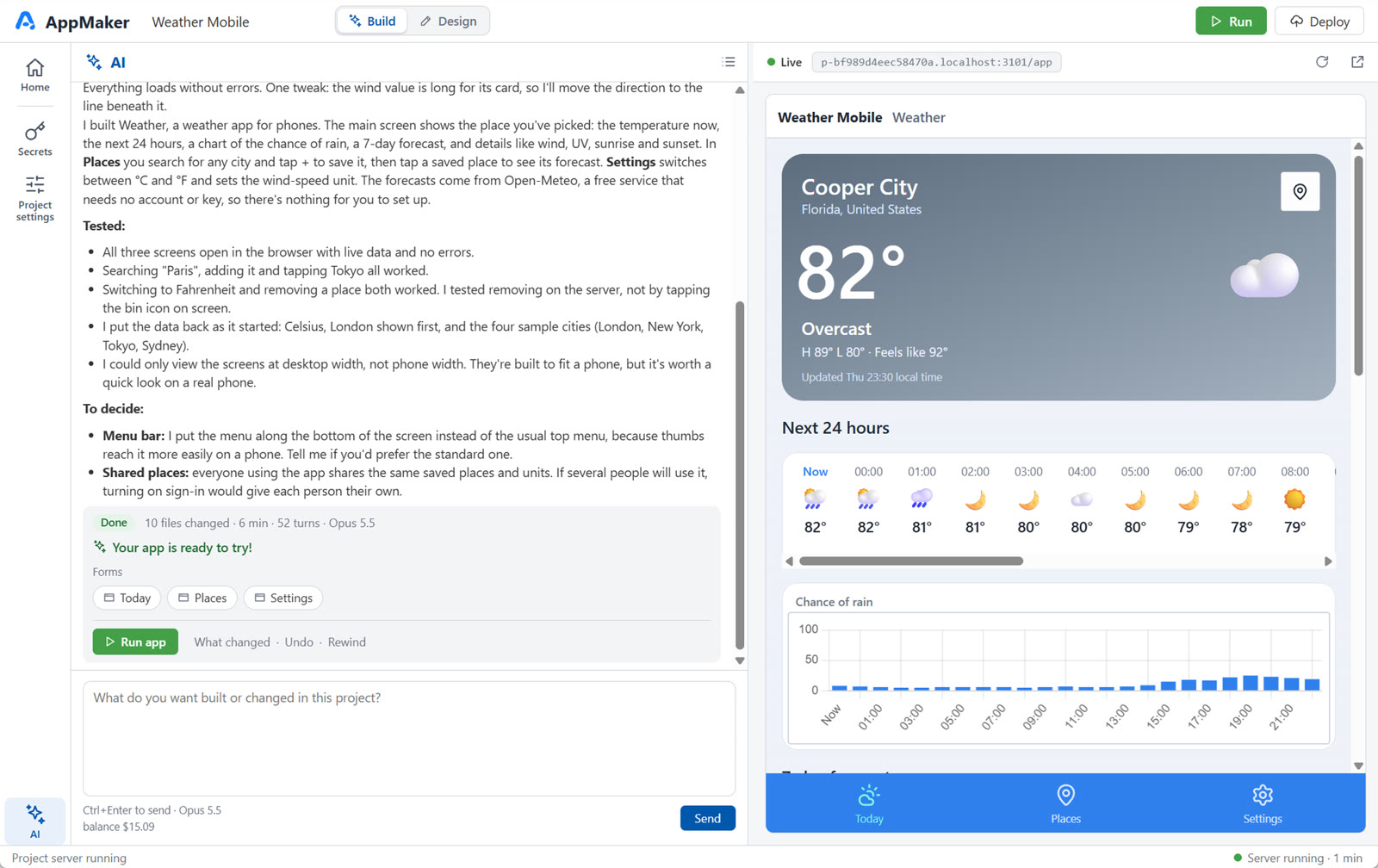
Let the AI build it in Build mode
The new project opens in Build mode: the conversation on one side, your app on the other. The AI creates the forms, tables, server logic and, if you asked for it, sign-in and roles. The app appears as soon as it can run.
Because the platform already provides the database, users and the rest of the foundation, the AI works on what is specific to your app rather than on infrastructure.
Step 3
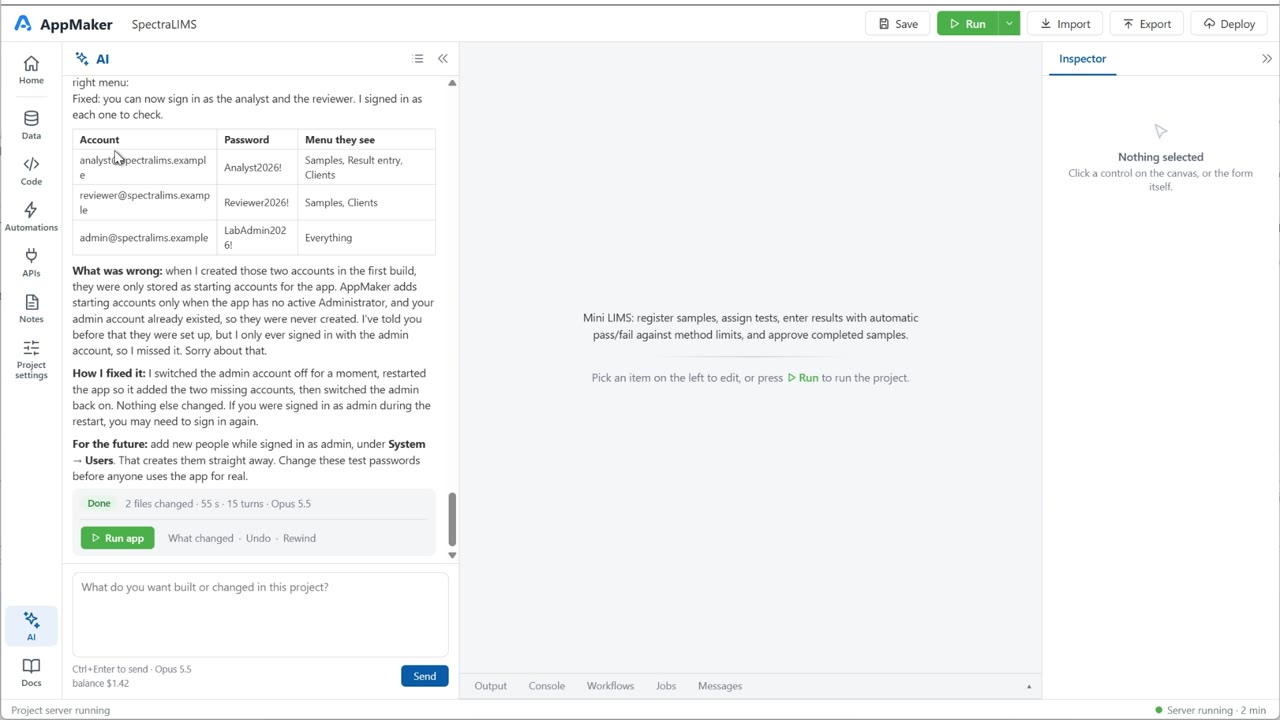
Refine it in conversation
Use the app, then say what should change: "add a status filter", "only managers can approve", "make the list work on a phone". Every task ends with a short report and three ways to stay in control: What changed, Undo and Rewind.
Undo and Rewind restore the project's files. Data you entered in the running app stays as it is.
Step 4
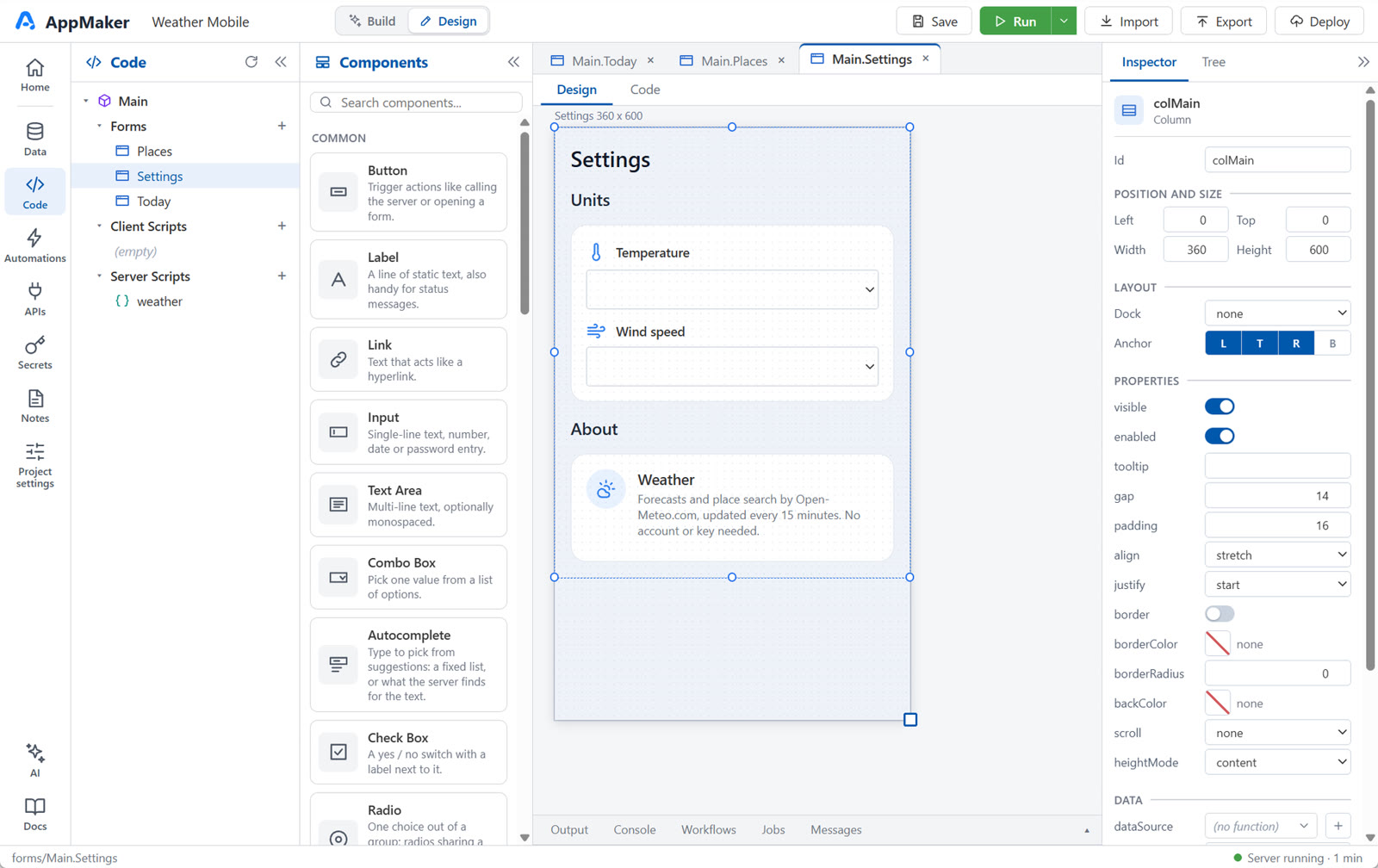
Extend it in Design mode
Switch to Design when you want precise control. Every form, control, table, script, workflow and job the AI created is there to open and edit. Lay out forms visually, change the SQL, write client or server JavaScript, or add a scheduled job.
Nothing is converted when you switch. Hand the next change back to the AI whenever you like: it works on the same project you just edited.
Step 5
Export it and run it your way
Deploy → Download as ZIP packages the project as a standalone Node.js application: the AppMaker runtime and your project, without the designer. Run it on a server you choose. You can keep developing in AppMaker and export again, or carry on outside it.
Exported applications need Node.js 24 or later. During the public beta, treat exports as development builds and test them before anyone relies on them.
$ unzip booking-app.zip && cd booking-app
$ npm ci --omit=dev
$ npm start
listening on http://localhost:3000
Prefer to start without AI?
Start from a template such as Tutorial, Mini CRM or Inventory, or from a blank app, and build it in Design mode. Templates and hand-built work don't use AI credits.
Where people usually start
Consultants and independent developers
Reach a working first version of a client's app quickly, refine the details in Design mode, and deliver something the client can see running early.
Solo developers and technical founders
Skip rebuilding sign-in, roles, storage and admin screens for every project. Spend your time on the part that is specific to your business.
Business users and AI-first builders
Describe what you need without learning forms or databases first. When you're curious how it works, Design mode shows you, one piece at a time.